

Unstable Wi-Fi is one of the most frustrating issues for any computer user. Whether you are browsing the web, streaming videos, attending an online class, or working remotely, a weak or unstable wireless connection can disrupt everything. Many people blame their router or internet service provider, but in countless cases, the real culprit lies inside the computer: outdated or corrupt network drivers. This is where Driver Booster 13 Free—a powerful and easy-to-use driver updater—plays a major role in restoring smooth and stable connectivity.
If your Wi-Fi keeps dropping, feels unusually slow, or randomly disconnects despite having good signal strength, the first thing you should check is your system’s network drivers. Here is a complete guide on how to troubleshoot and fix unstable Wi-Fi using Driver Booster 13.
Understanding Why Wi-Fi Becomes Unstable
Your Wi-Fi relies on the correct communication between your operating system and the wireless adapter. This communication happens through network drivers. If these drivers are outdated, damaged, or incompatible, the system may fail to maintain a reliable connection.
Common symptoms of driver-related Wi-Fi issues include:
- Frequent disconnections or “No Internet” messages
- Slow or unstable downloading and uploading
- Wi-Fi not appearing in available networks
- Adapter disabling itself randomly
- System lag or freezes when connected to Wi-Fi
Updating your router helps, but if the internal drivers are faulty, the problem will continue. This is why using a reliable driver updater becomes essential.
Discover a related post that adds fresh insight and connects perfectly with your read.
Why Driver Issues Occur
Driver problems happen for multiple reasons:
1. Windows Updates
Sometimes Windows updates override existing drivers with generic versions that lack proper optimization.
2. Old Device Drivers
Manufacturers constantly release new versions to fix bugs and improve performance. Not updating them can lead to instability.
3. Corrupted Files
Power outages, forced shutdowns, or malware can damage driver files.
4. New Software Conflicts
Installing VPNs, firewalls, or new system utilities can unintentionally disrupt network driver behavior.
Driver Booster 13 helps eliminate all these issues by identifying outdated or malfunctioning drivers and updating them safely.
What Makes Driver Booster 13 Free Effective?
Driver Booster 13 Free is designed to simplify driver maintenance for all levels of users from IObit. Even if you have no technical experience, you can easily scan and update any driver, especially network drivers causing unstable Wi-Fi.
Key reasons why the tool is so effective:
1. Huge Driver Database
It offers one of the largest driver databases, allowing it to detect rare, outdated, and missing 12,000,000+ drivers.
2. Safe and Verified Updates
Every driver update comes from trusted sources and undergoes strict testing to ensure it won’t harm your system.
3. Automatic Backup
Before updating, it automatically creates a backup of the old driver, so you can roll back if anything goes wrong.
4. Fast and Smooth Scanning
The software scans your entire system within seconds and highlights problematic drivers clearly.
5. Special Focus on Network Stability
Driver Booster 13 includes dedicated network tools that help fix Wi-Fi disconnecting or slow-speed problems efficiently.
How to Fix Unstable Wi-Fi Using Driver Booster 13 Free
Follow these steps to troubleshoot and stabilize your Wi-Fi connection:
Step 1: Open Driver Booster 13 Free
Launch the program. The interface is clean and user-friendly, making it easy for beginners to get started.
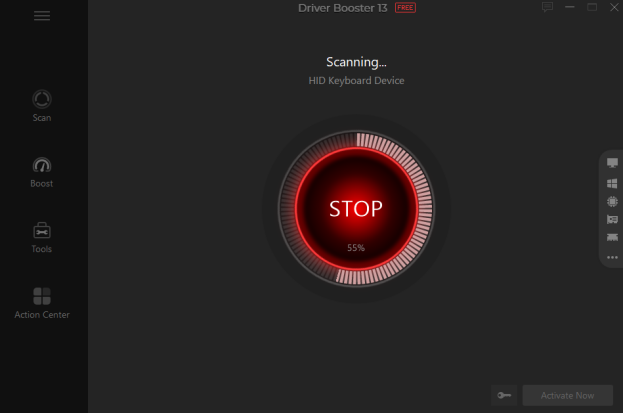
Step 2: Run a Full System Scan
Click the Scan button.
Driver Booster will analyze all installed drivers—including network drivers like:
- Wi-Fi Adapter
- LAN Controller
- Bluetooth Module
- Network Chipset Drivers
The software will automatically identify any outdated or corrupted drivers responsible for unstable Wi-Fi.

Step 3: Update Network Drivers
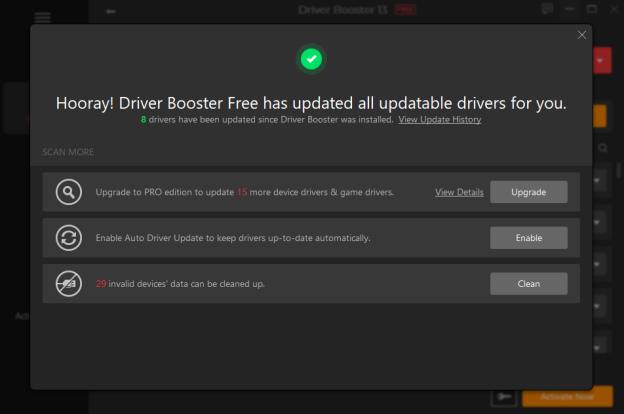
Once the scan completes, you will see a list of drivers that require attention.
Look for:
- Wireless Network Adapter Driver
- Intel/Realtek/Broadcom Wi-Fi Driver
- Network Chipset Driver
Click Update to install the latest and most stable version.
This step often solves:
- Wi-Fi dropping issues
- Weak signal performance
- Slow or inconsistent internet speed
- Network adapter errors
Step 4: Use the Network Fix Tool
Driver Booster 13 includes a special Network Repair function.
This tool automatically:
- Resets network configurations
- Repairs corrupted network files
- Resolves IP and DNS conflicts
- Fixes system-level network interruptions
If your Wi-Fi feels unstable even after updating drivers, running this tool usually solves the remaining issues.

Step 5: Restart Your System
After applying the updates and fixes, restart your system to ensure all new driver components load properly.
Once rebooted, connect to Wi-Fi again and check the stability. In most cases, users experience immediate improvement.
Additional Tips to Maintain Stable Wi-Fi
While updating drivers is the most important step, you can also use these tips to keep your connection strong:
- Avoid placing the router too far from your PC
- Disconnect unused devices from the network
- Check for malware that may consume bandwidth
- Disable unnecessary startup apps
- Use 5GHz Wi-Fi for faster and more stable performance
However, none of these will work effectively if your network drivers are outdated. That’s why keeping them updated through a tool like Driver Booster is essential.
Final Thoughts
Unstable Wi-Fi can destroy productivity and cause endless frustration, but the solution is often simpler than people think. Most Wi-Fi issues originate from outdated or corrupted network drivers. With the help of Driver Booster 13 Free—a reliable and powerful driver updater—you can diagnose and resolve these problems quickly.
Regularly updating your drivers ensures your system stays optimized, keeps your Wi-Fi stable, and improves overall performance. If you are facing frequent Wi-Fi drops or slow connectivity, using Driver Booster 13 is one of the easiest and safest ways to bring your network back to life.
Keep exploring—find more content designed to inspire, inform, and ignite curiosity.